Interface and Operation Methods
This section follows the official User Interface category: Interface (screen regions) and Operation Methods (mouse and keyboard controls).
Interface Main Screen Regions
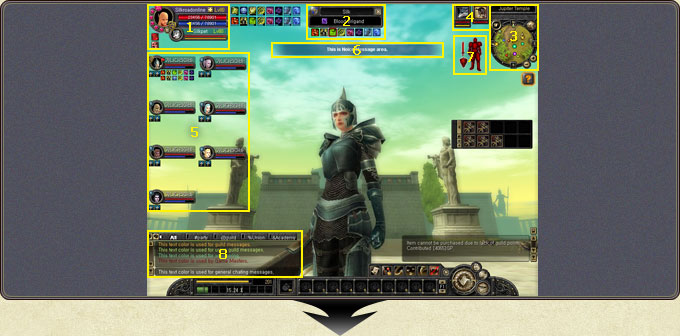
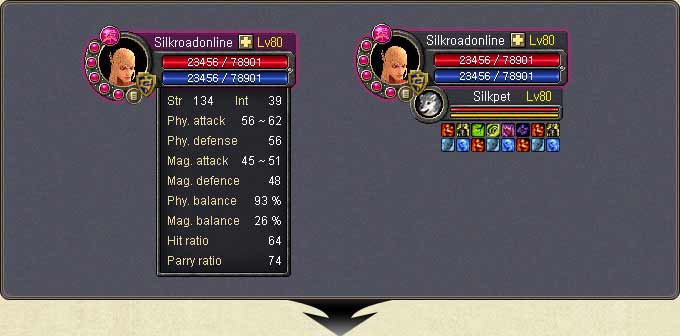
1. Character status
The portrait, name and level with the HP (red) and MP (blue) bars. Hovering the portrait opens STR/INT, physical and magical attack-defense, balance, hit ratio and parry ratio.
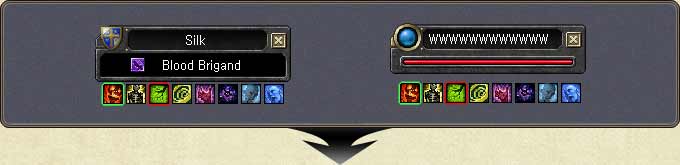
2. Target status
Shows the selected target's name, HP bar and the active buff/debuff icons on it. Players in job suits appear under their alias.
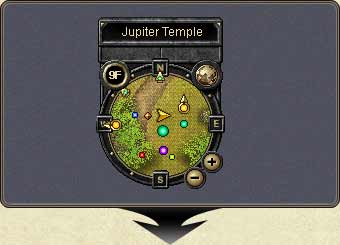
3. Minimap
Shows the current region's name, the compass (N/S/E/W) and nearby NPCs, party members and points of interest. The + / − buttons zoom, and the floor indicator at the top left shows your floor in dungeons.
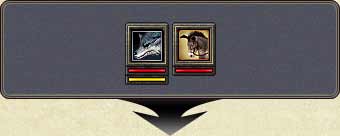
4. Mount and pet status
The icon and health of summoned mounts and pets; when using a transport, the caravan's status appears here as well.
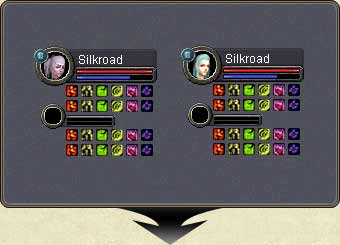
5. Party list
Lists party members' portraits, HP/MP bars and their buff icons. Members can be targeted directly with Ctrl + 2~8.
6. Notice message area
Server notices, unique spawn announcements and system messages appear in this strip at the top center of the screen.
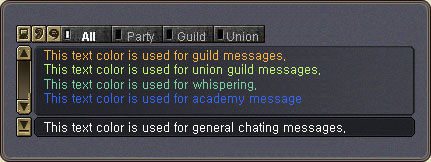
7. The chat window and its color codes
The tabs separate the channels: All, Party, Guild, Union. The official color codes are:
| Color | Channel |
|---|---|
| Yellow | Guild messages |
| Green | Union guild messages |
| Purple | Whispering |
| Blue | Academy messages |
| White | General chatting |
8. The experience and SP bar
The strip at the bottom shows level experience with its percentage; the counter on the right shows accumulated skill points (SP).

Quick Slot
The row of 10 slots at the bottom; items and skills are dragged here and used with the 1-0 keys. The indicator on the right shows the active page (F1-F4).

Active buffs and status icons
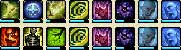
Active buffs, imbues and abnormal statuses are listed as icons; hovering an icon shows its remaining duration.
System messages

Operation Methods Mouse and Keyboard
Mouse
| Action | Function |
|---|---|
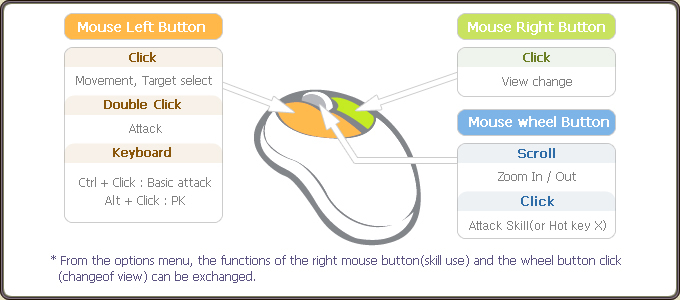
| Left click | Movement, target select |
| Left double click | Attack |
| Right click | View change |
| Wheel scroll | Zoom in / out |
| Wheel click | Attack skill (or hotkey X) |
In the options menu, the functions of the right button (skill use) and the wheel click (view change) can be exchanged.
Mouse + key combinations
| Combination | Function |
|---|---|
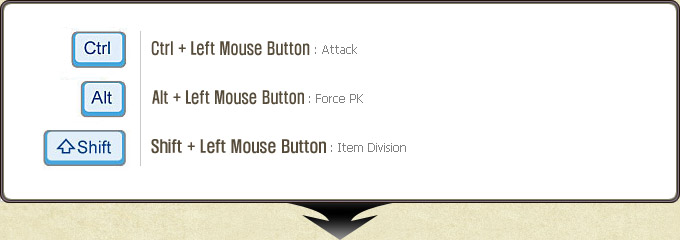
| Ctrl + left click | Attack |
| Alt + left click | Force PK |
| Shift + left click | Item division |
Movement
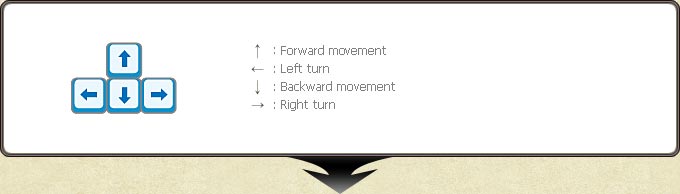
Arrow keys: ↑ forward, ↓ backward, ← left turn, → right turn.
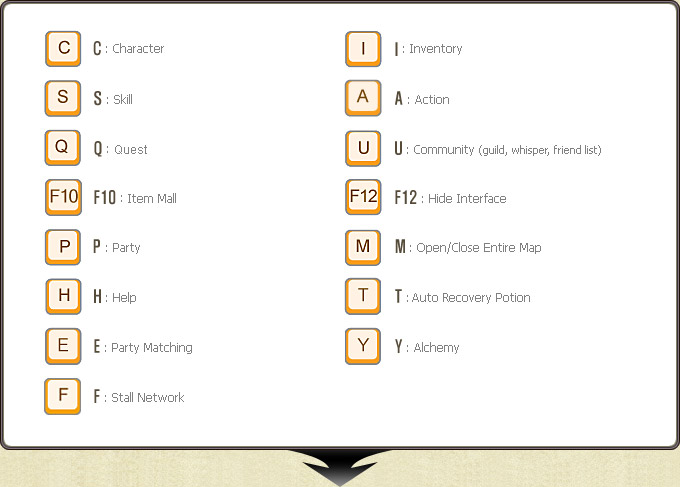
Window hotkeys
| Key | Window / function |
|---|---|
| C | Character |
| I | Inventory |
| S | Skill |
| A | Action |
| Q | Quest |
| U | Community — guild, whisper, friend list |
| P | Party |
| E | Party Matching |
| M | Open/close entire map |
| F | Stall Network |
| Y | Alchemy |
| T | Auto recovery potion |
| H | Help |
| F10 | Item Mall |
| F12 | Hide interface |
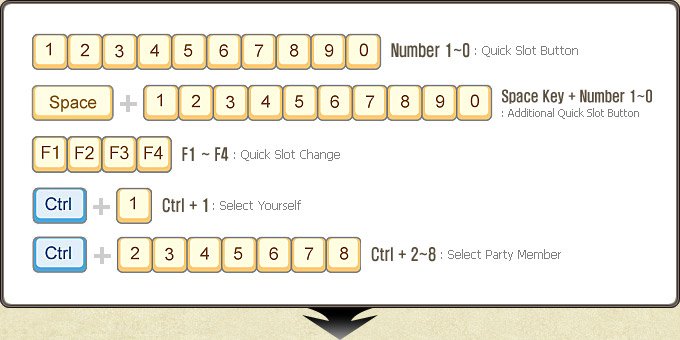
Quick slots and targeting
| Key | Function |
|---|---|
| 1 ~ 0 | Quick slot buttons |
| Space + 1 ~ 0 | Additional quick slot buttons |
| F1 ~ F4 | Quick slot change |
| Ctrl + 1 | Select yourself |
| Ctrl + 2 ~ 8 | Select party member |
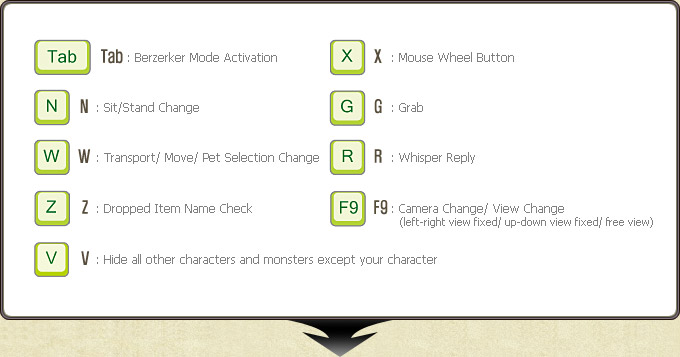
In-game hotkeys
| Key | Function |
|---|---|
| Tab | Berserker mode activation |
| N | Sit/stand change |
| W | Transport / move / pet selection change |
| Z | Dropped item name check |
| G | Grab |
| R | Whisper reply |
| X | Mouse wheel button |
| V | Hide all other characters and monsters except your own |
| F9 | Camera/view change (left-right fixed, up-down fixed, free view) |
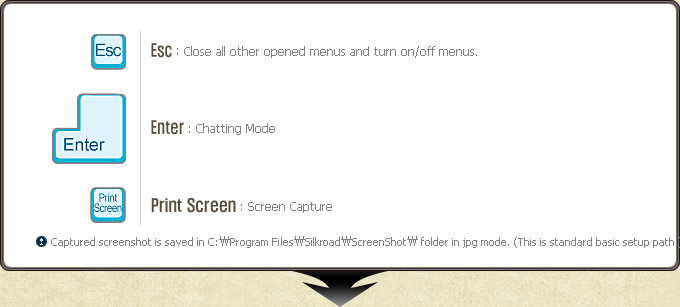
| Esc | Close all opened menus and turn menus on/off |
| Enter | Chatting mode |
| Print Screen | Screen capture |
Captured screenshots are saved as jpg in the ScreenShot folder inside the Silkroad installation folder.
Keyboard layout
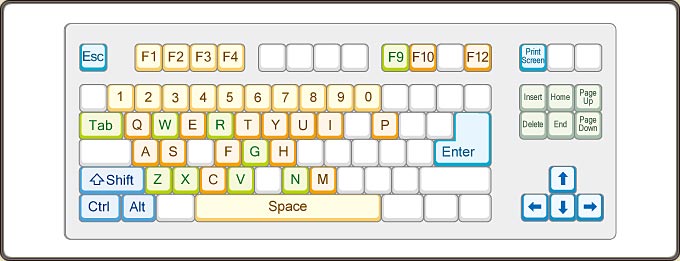
The tables and images in this section are from the official Silkroad Online guide documentation.